

Introduction
Effective team management is essential for scaling your content production in GetFeed. Whether you're a growing creator bringing on editors, or an agency managing multiple clients, this guide covers inviting members, assigning roles, and maintaining a productive collaborative environment. By the end, you'll have a well-structured team ready to produce viral content together.
Tip
Prerequisites
- Owner or Admin access to your GetFeed organization
- Email addresses for team members you want to invite
- Understanding of what access level each person needs
Accessing Team Management
Navigate to Settings
From your GetFeed dashboard, click Settings in the left sidebar.
Open Members Section
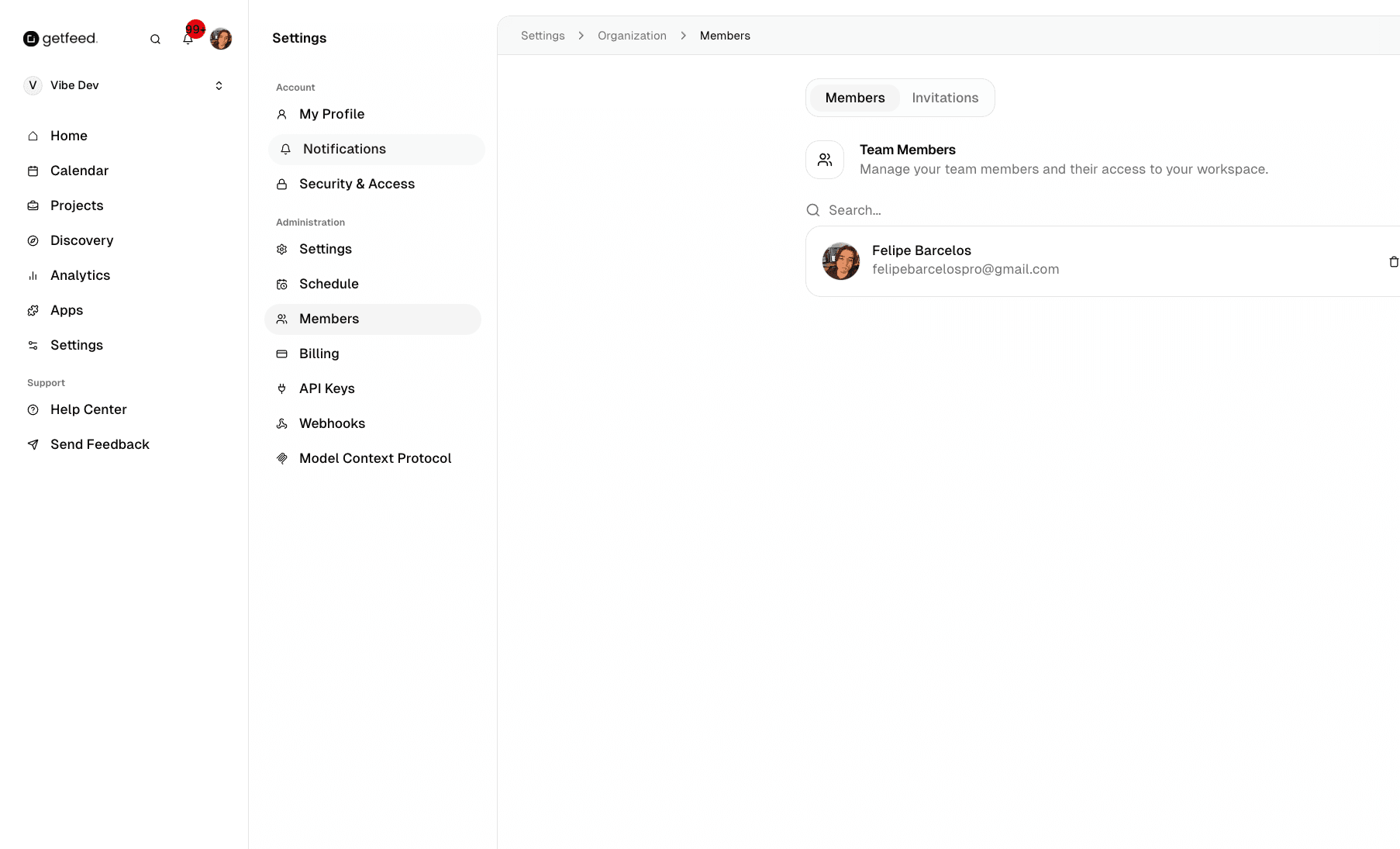
In the Settings sidebar, under Administration, click Members. You'll see two tabs: Members (current team) and Invitations (pending invites).
Understanding Roles
GetFeed uses a role-based permission system to control what each team member can do:
| Role | Description | Permissions |
|---|---|---|
| Owner | Full control over the organization | All permissions including billing, deletion, and ownership transfer |
| Admin | Trusted manager role | Manage members, organization settings, and all content features |
| Member | Core contributor role | Access all content tools (upload, edit, schedule) but cannot manage settings or team |
Note
Inviting Team Members
Click Invite Member
On the Members page, click the Invite Member button (or switch to the Invitations tab).
Enter Details
Fill in the invitation form:
- Email: The team member's email address
- Role: Select Owner, Admin, or Member
Send Invitation
Click Send Invitation. The invitee will receive an email with instructions to join your organization.
Managing Existing Members
Viewing Members
The Members tab shows all current team members with:
- Profile: Name and avatar
- Email: Their account email
- Role: Their current permission level
- Actions: Menu for role changes or removal
Searching Members
Use the search bar to quickly find team members by name or email when you have a larger team.
Changing Roles
- Find the member in the list
- Click the menu button (three dots) on their row
- Select the new role
- Confirm the change
Important
Removing Members
- Find the member in the list
- Click the menu button (three dots)
- Select Remove
- Confirm the removal
Removed members immediately lose access to all organization content and cannot see projects, clips, or settings.
Managing Invitations
Switch to the Invitations tab to see pending invites:
- Pending: Invitations that haven't been accepted yet
- Resend: Send the invitation email again if it was missed
- Cancel: Revoke an invitation before it's accepted
Team Member Limits
Your plan determines how many team members you can have:
| Plan | Team Members |
|---|---|
| Free | 1 |
| Plus | 5 |
| Pro | Unlimited |
If you've reached your limit, you'll need to upgrade your plan or remove existing members before inviting new ones.
Troubleshooting
Best Practices
Related Features
- Managing Your Profile - Update your personal information
- Security & Access - Enable two-factor authentication
- Customizing Your Organization - Set up your workspace branding
Read More