

Introduction
Uploading videos is the essential first step to unleashing your content potential with GetFeed. Whether you have a YouTube video, a Vimeo link, or a local file, GetFeed makes it easy to start transforming your long-form content into scroll-stopping clips.
Pro-Tip
Prerequisites
Before uploading, make sure you have:
- An active GetFeed account with available video processing quota
- A video file (MP4, MOV, or WebM) or a link to a supported platform
- Stable internet connection for seamless uploads
Supported Platforms
GetFeed supports video uploads from multiple sources:
| Platform | Support Level |
|---|---|
| YouTube | ✅ Full support |
| Vimeo | ✅ Full support |
| Rumble | ✅ Full support |
| Local File Upload | ✅ Full support (MP4, MOV, WebM) |
Step-by-Step Guide
Navigate to the Home Dashboard
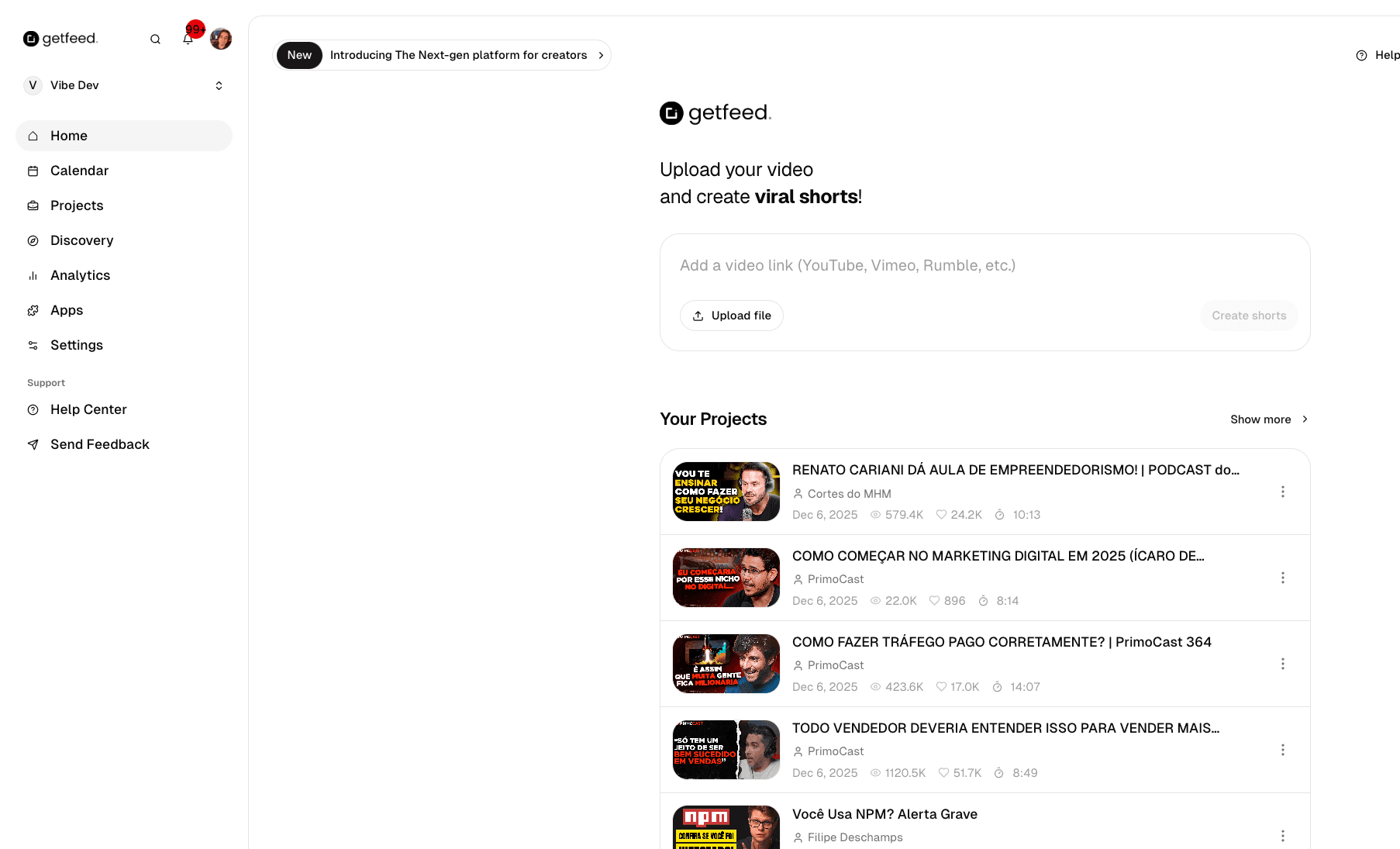
After logging in, you'll land on the Home Dashboard. This is your central hub for uploading videos and managing projects. Look for the "Upload your video" section at the top of the page.
Choose Your Upload Method
You have two options to upload your video:
Option A: Paste a Video URL
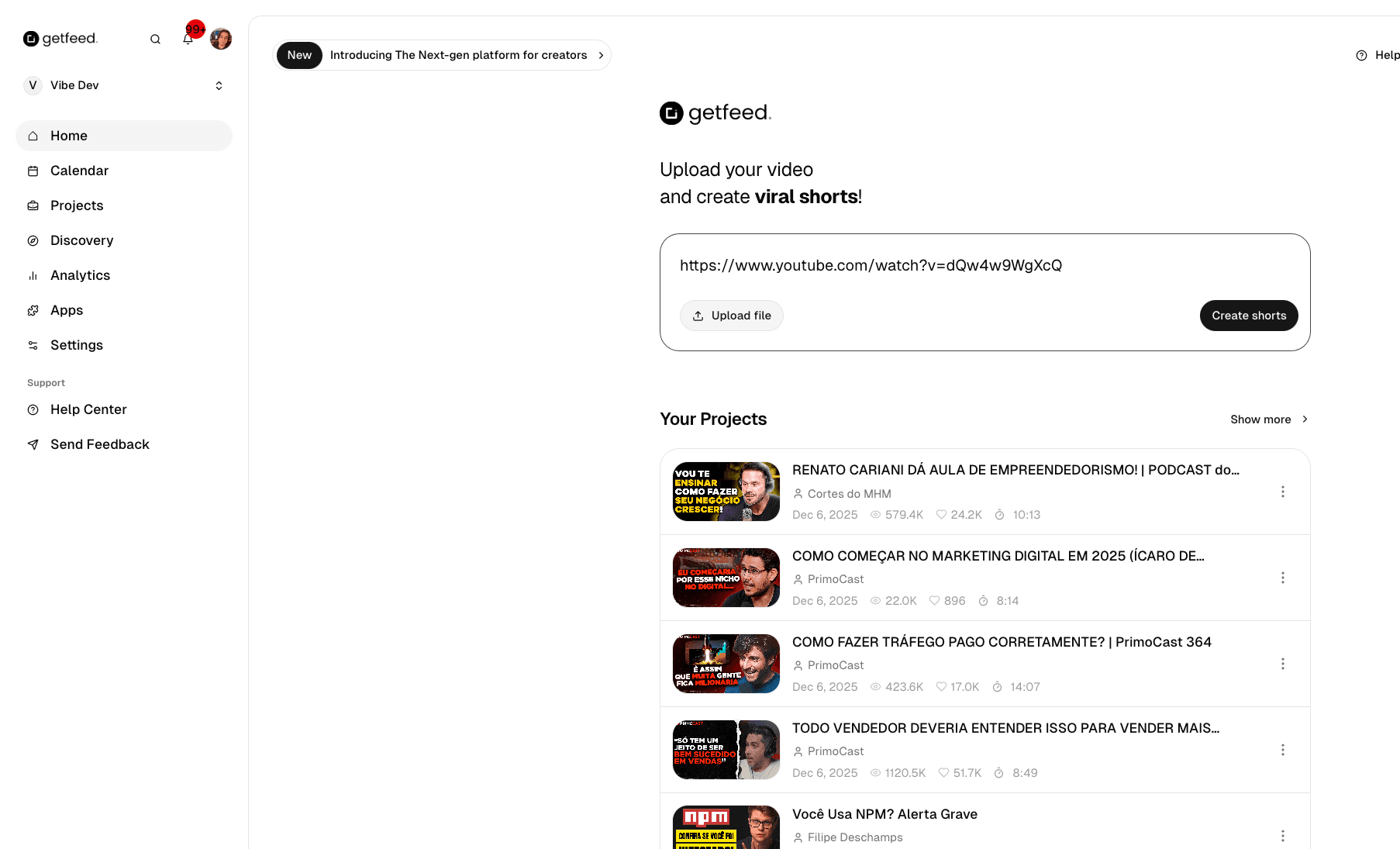
- Click on the text field that says "Add a video link (YouTube, Vimeo, Rumble, etc.)"
- Paste the full URL of your video (e.g.,
https://www.youtube.com/watch?v=...) - The button "Create shorts" will become active once a valid URL is detected
Option B: Upload a Local File
- Click the "Upload file" button next to the URL field
- Select your video file from your computer
- Supported formats: MP4, MOV, WebM (max 1GB recommended)
Start Processing
Once you've added your video:
- Click the "Create shorts" button
- GetFeed will begin downloading (for URLs) or uploading (for local files) your video
- The AI will automatically analyze your content to identify viral moments
Note
View Your Generated Clips
After processing completes:
- Your video will appear in the "Your Projects" section on the Home Dashboard
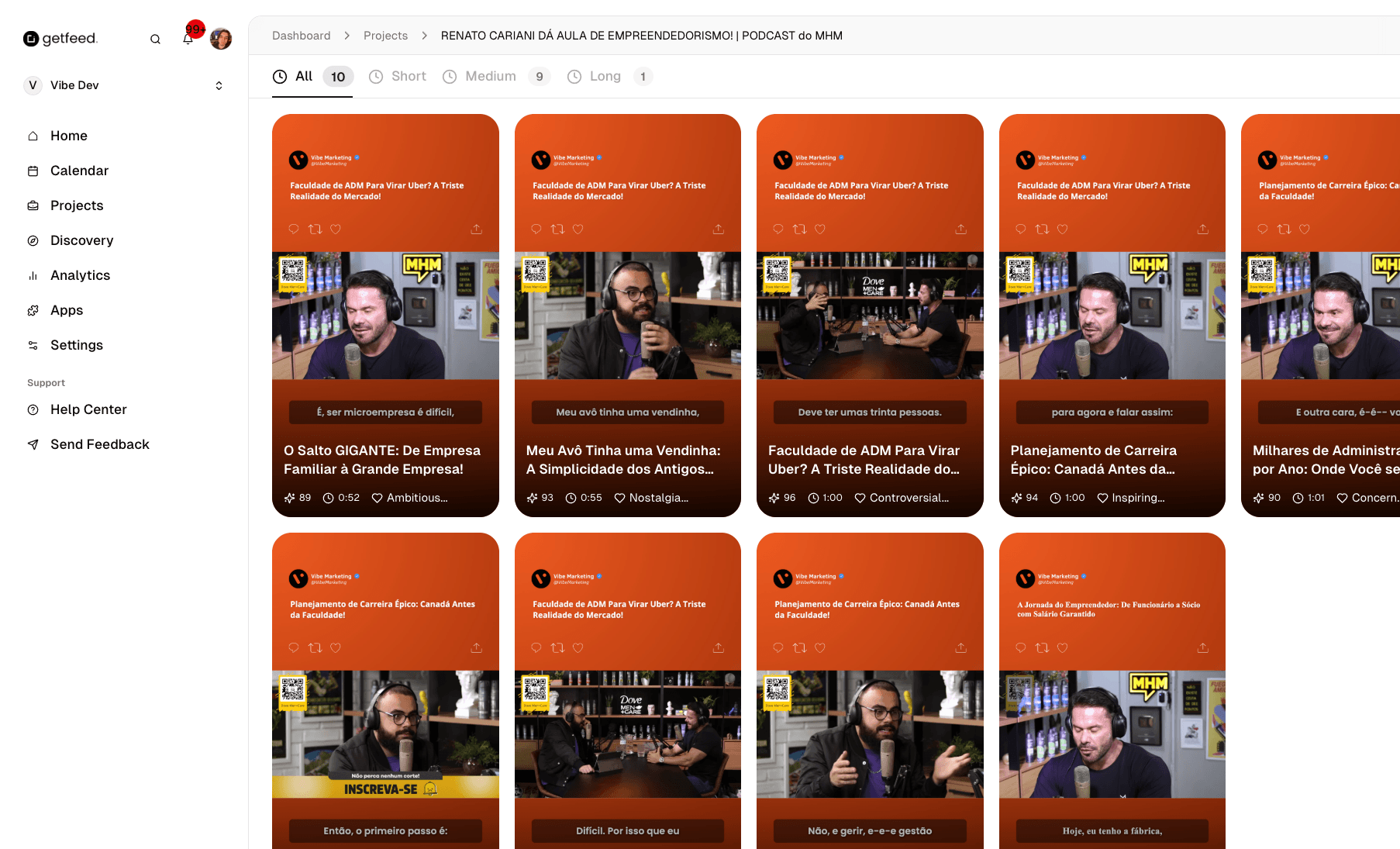
- Click on the project to see all AI-generated clips
- Each clip shows a Virality Score (0-100) indicating its viral potential
Understanding Your Results
Once your video is processed, GetFeed displays:
- Clip Thumbnails: Preview images for each identified viral moment
- Virality Score: A 0-100 score predicting the clip's viral potential
- Duration: The length of each generated clip
- Emotion Tags: AI-detected emotions (e.g., "Inspiring", "Controversial", "Ambitious")
Troubleshooting
Best Practices
Next Steps
After uploading your video:
- Review clips: Check the generated clips and their virality scores
- Edit clips: Use the Video Editor to trim, add captions, and customize
- Schedule posts: Connect your social accounts and schedule clips for publishing
Ready to edit?
Read More