

Introduction
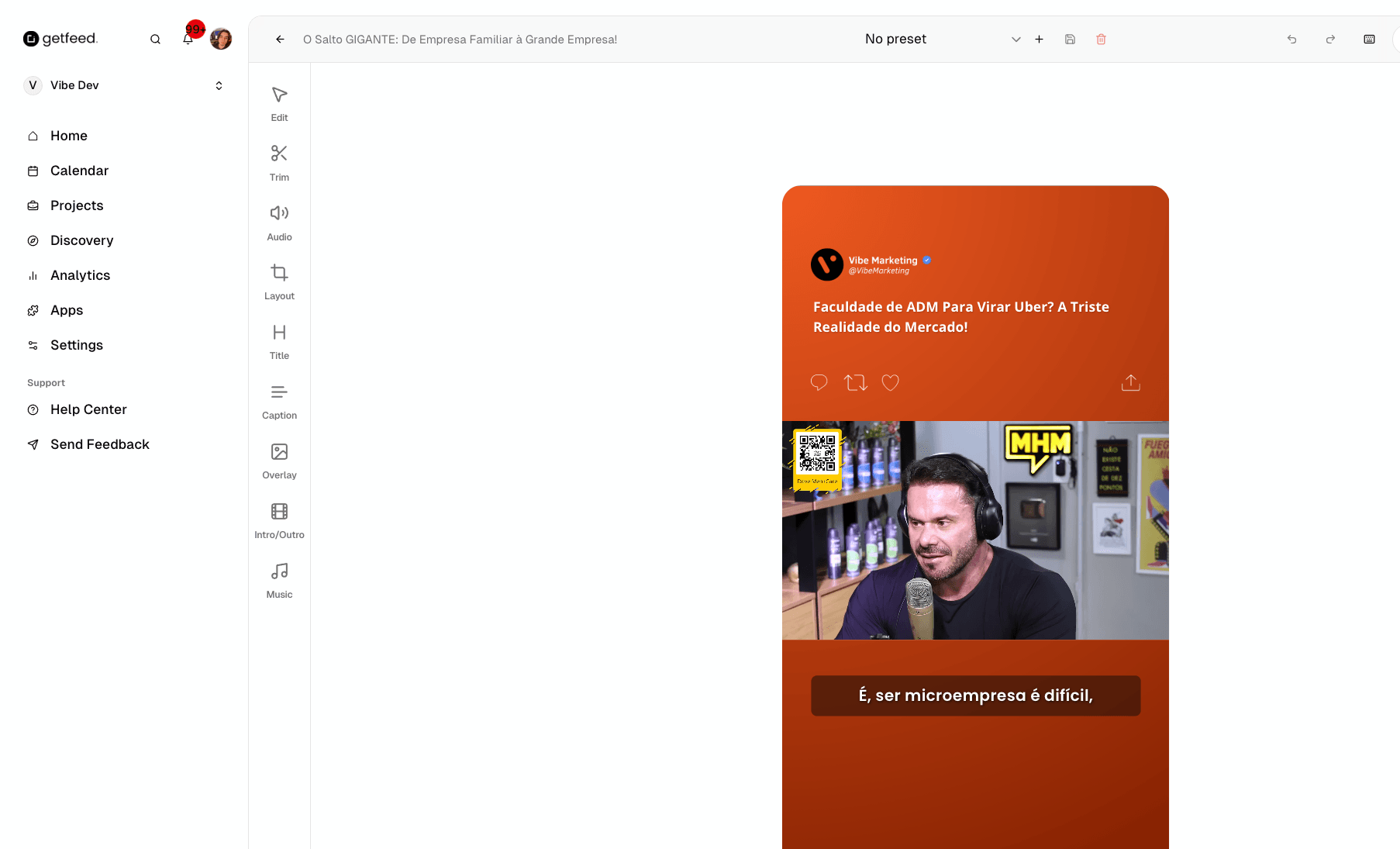
The GetFeed Video Editor is where you transform AI-generated clips into polished, scroll-stopping content. Whether you need to trim the perfect moment, add eye-catching captions, or apply your brand elements, the editor provides all the tools you need to create professional short-form videos in minutes.
Pro-Tip
Prerequisites
Before using the Video Editor:
- Have at least one processed video with generated clips
- Know your target platform (TikTok, YouTube Shorts, Instagram Reels) for optimal aspect ratio
- Have your brand assets ready (logo, colors) if applying branding
Accessing the Editor
Navigate to Your Project
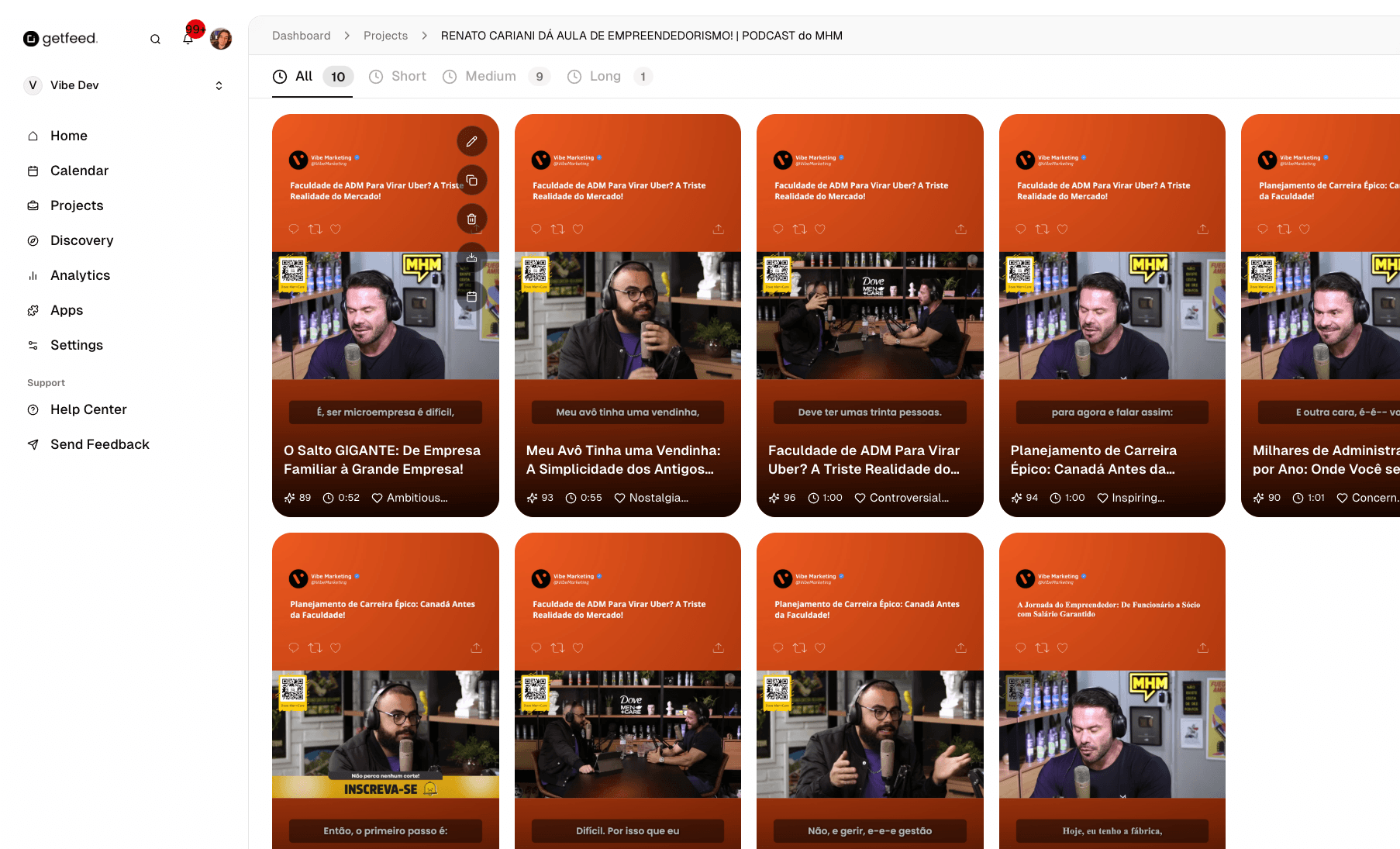
From the Home Dashboard, click on any video in the "Your Projects" section to view its generated clips.
Open the Editor
Hover over any clip card to reveal the action buttons. Click the "Edit Clip" button (pencil icon) to open the Video Editor.
Editor Interface Overview
The Video Editor is organized into three main areas:
| Area | Description |
|---|---|
| Top Bar | Clip title, preset management, undo/redo, save, render, and schedule buttons |
| Left Sidebar | Editing tools organized by category (Trim, Audio, Layout, etc.) |
| Center Area | Live video preview with real-time changes |
| Bottom Area | Timeline controls for playback and navigation |
Editing Tools
Edit Tab
The default view showing general clip information and quick actions.
Trim
Adjust the start and end points of your clip to capture the perfect moment.
Keyboard Shortcuts
Audio
Control the audio levels of your clip:
- Volume: Adjust the overall clip volume
- Fade In/Out: Add smooth audio transitions
- Mute: Completely silence the original audio
Layout
Configure how your video appears on screen:
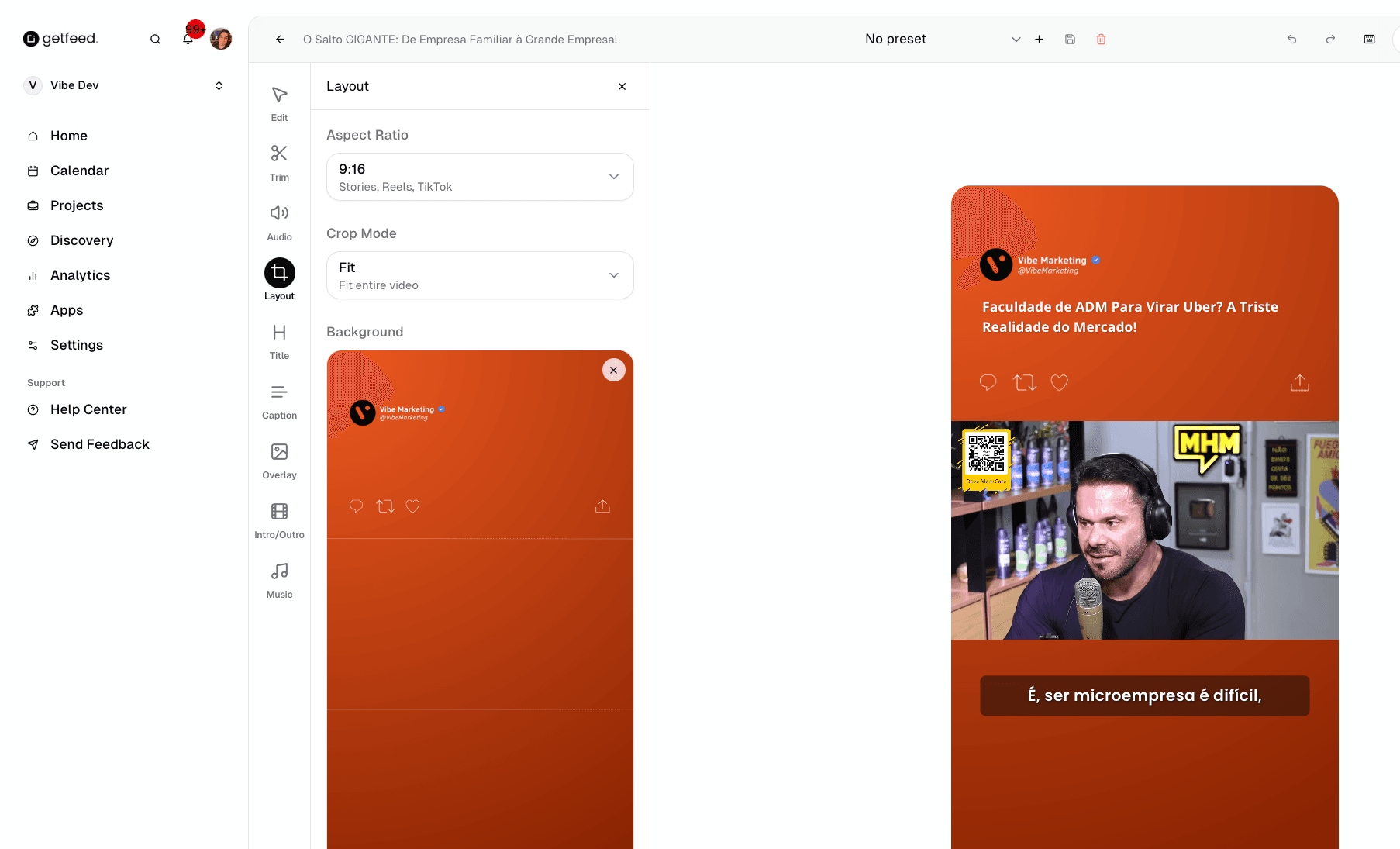
- Aspect Ratio: Choose between 9:16 (Stories/Reels/TikTok), 1:1 (Square), or 16:9 (Landscape)
- Crop Mode: Select "Fit" to show the entire video or "Fill" to crop and fill the frame
- Background: Choose a blur, solid color, or gradient background for letterboxed content
Title
Add text overlays to your clip:
- Title Text: Add a headline or hook
- Position: Place your title at top, center, or bottom
- Style: Customize font, size, color, and animation
Caption
Apply auto-generated captions with professional styling:
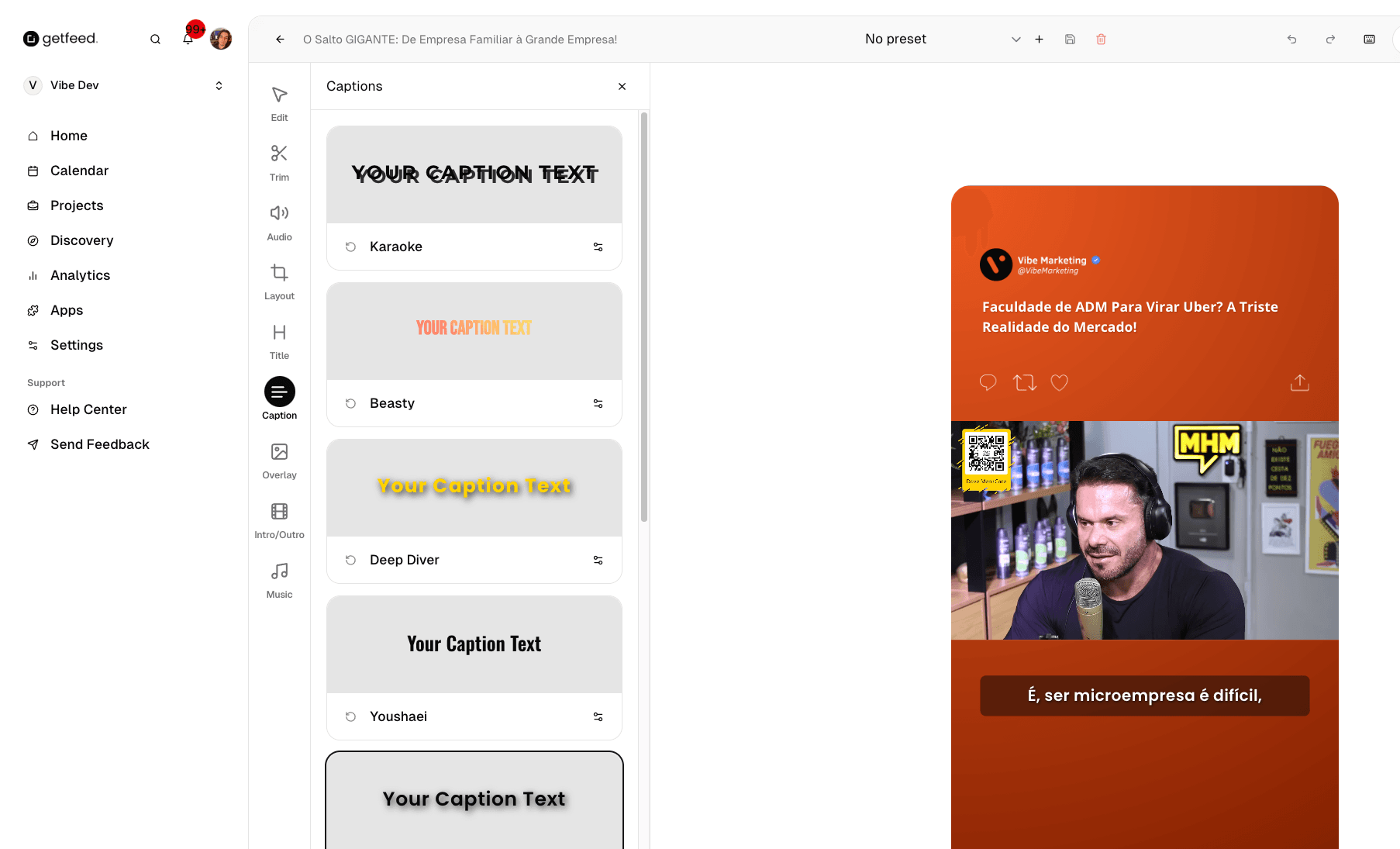
GetFeed offers multiple caption presets:
- Karaoke: Word-by-word highlight effect
- Beasty: Bold, impactful style
- Deep Diver: Clean, minimal look
- Neon Glow: Eye-catching neon effect
- Retro Wave: 80s-inspired aesthetics
- And more...
Custom Styles
Overlay
Add branding elements to your clips:
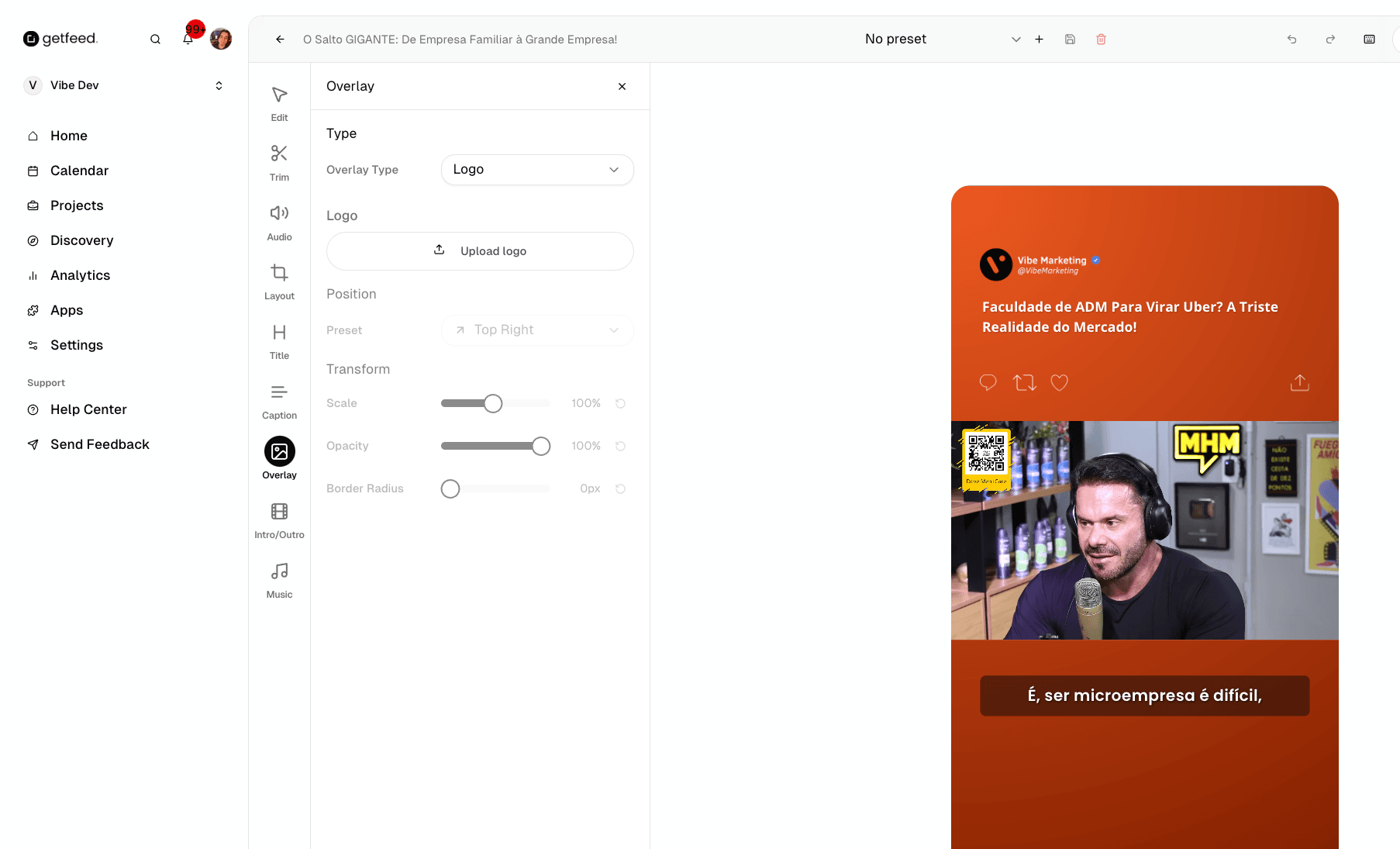
- Logo: Upload your brand logo
- Position: Place in any corner or custom position
- Scale & Opacity: Adjust size and transparency
- Progress Bar: Add a visual progress indicator
Intro/Outro
Add professional intro and outro sequences:
- Intro: Hook viewers in the first seconds
- Outro: Add a call-to-action or branding
- Upload custom video files or use templates
Music
Add background music to enhance engagement:
- Choose from the built-in music library
- Upload your own audio tracks
- Adjust volume and fade settings
Working with Presets
Presets save your complete editor configuration for instant reuse:
Create a Preset
After configuring your desired settings (captions, layout, overlay, etc.), click "Create preset" in the top bar. Give your preset a memorable name like "Brand Style 1" or "TikTok Template".
Apply a Preset
Open any clip in the editor and select your saved preset from the dropdown. All settings will be instantly applied.
Bulk Apply
From the project page, use "Apply preset to clips" to apply your preset to multiple clips at once.
Saving and Exporting
Save Changes
Click "Save changes" to preserve your edits. Your changes are saved to GetFeed and can be modified later.
Render
Click "Render" to generate the final video file with all your edits applied. Rendering typically takes 30 seconds to 2 minutes depending on clip length.
Schedule
Click "Schedule" to send the clip directly to your posting queue. Connect your social accounts first in Settings > Integrations.
Troubleshooting
Best Practices
Keyboard Shortcuts
Speed up your editing with these shortcuts:
| Shortcut | Action |
|---|---|
| Space | Play/Pause |
| ← / → | Rewind/Forward 10 seconds |
| [ | Set start point |
| ] | Set end point |
| Ctrl+S | Save changes |
| Ctrl+Z | Undo |
| Ctrl+Shift+Z | Redo |
Next Steps
After editing your clips:
- Render: Generate the final video file
- Schedule: Add to your posting queue
- Track: Monitor performance in Analytics
Ready to publish?
Read More