

Introduction
Model Context Protocol (MCP) lets you connect AI assistants to your GetFeed organization so they can securely perform actions and fetch data on your behalf. With GetFeed, each organization has its own MCP Server URL, ready to use with ChatGPT, Claude, and popular developer tools like Cursor, VS Code, and Windsurf.
What can AI assistants do?
Prerequisites
Before connecting AI assistants, ensure you have:
- Organization role: Owner or Admin
- An active GetFeed organization
- An AI assistant that supports MCP (e.g., ChatGPT with Connectors, Claude Desktop)
Finding Your MCP Server URL
Navigate to MCP Settings
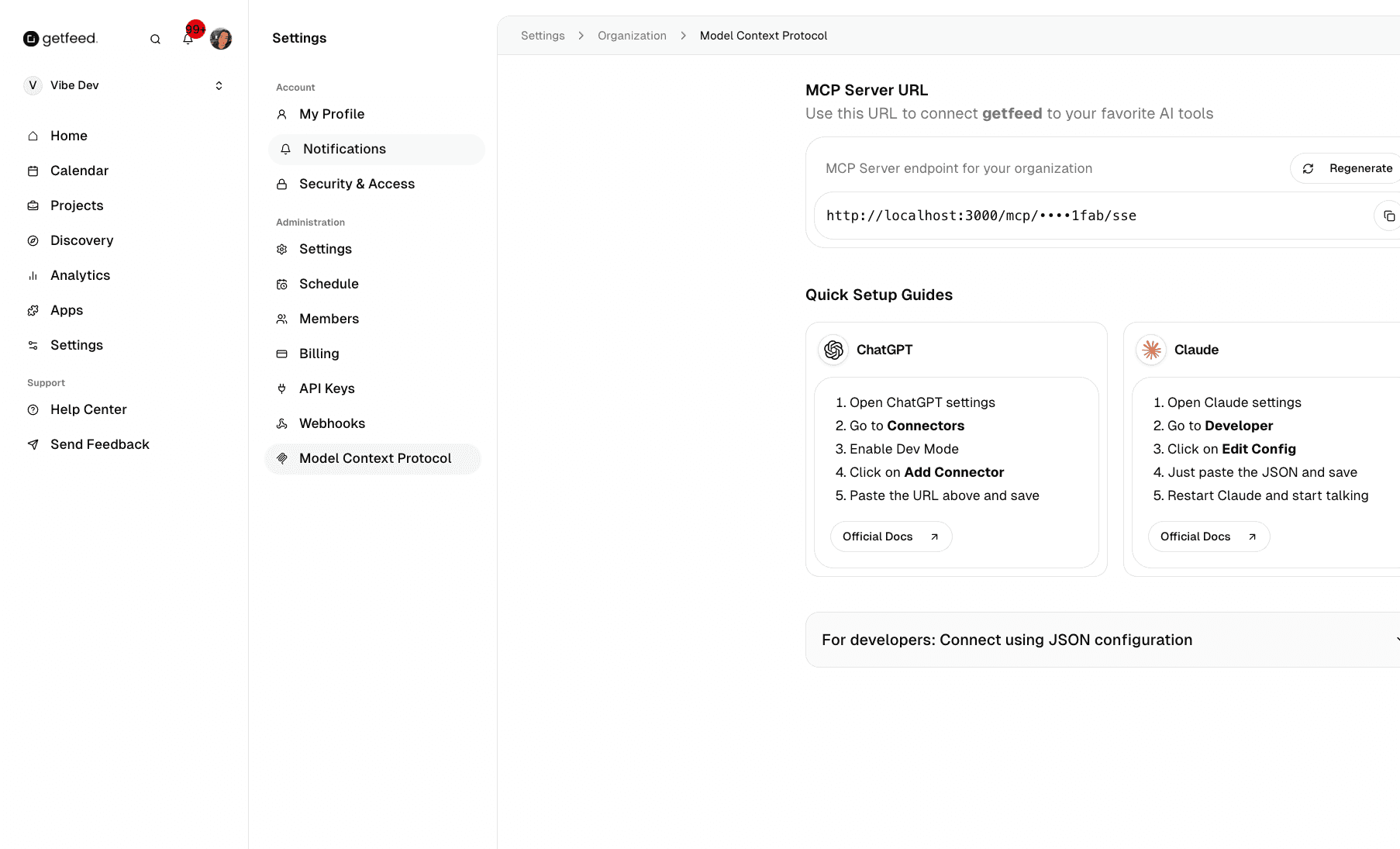
From your GetFeed dashboard, go to Settings > Organization > Model Context Protocol.
Copy Your Organization URL
Your unique MCP Server URL is displayed at the top of the page. Click the Copy button to copy the full URL to your clipboard.
The URL format looks like: https://app.getfeed.com/mcp/sk_xxxxxxxxxxxx/sse
Security Note
Regenerate Key (Optional)
If you need to revoke access from previously connected assistants, click Regenerate Key. This immediately invalidates the old URL and generates a new one.
Quick Setup Guides
The MCP settings page includes step-by-step guides for popular AI tools. Here's how to connect each one:
ChatGPT (Connectors)
Open ChatGPT settings and navigate to Connectors
Enable Dev Mode if required
Click Add Connector
Paste your GetFeed MCP URL and save
Documentation
Claude Desktop
Open Claude settings and go to Developer
Click Edit Config
Paste the JSON configuration (available on the MCP settings page)
Save and restart Claude
Documentation
Developer Tools (Cursor, VS Code, Windsurf, Cline, Roo Code)
For developer tools, create or edit the tool-specific MCP configuration file:
| Tool | Configuration File |
|---|---|
| Cursor | .cursor/mcp.json |
| VS Code Copilot | .vscode/mcp.json |
| Windsurf | Tool-specific settings |
| Cline | .cline/mcp.json |
| Roo Code | Tool settings |
The MCP settings page provides a ready-to-use JSON configuration. Expand the "For developers: Connect using JSON configuration" section to copy the full configuration.
What You Can Do with Connected Assistants
Once your AI assistant is connected to GetFeed, you can:
- List projects: "Show me my recent video projects"
- Check clip status: "What's the status of my latest clips?"
- Get analytics: "How are my clips performing this week?"
- Manage content: "Create a new post for my highest-scoring clip"
- Explore data: "Which of my clips has the highest virality score?"
Natural Language
Security & Privacy
Your MCP connection is designed with security in mind:
| Security Feature | Description |
|---|---|
| Unique URL | Each organization has a unique, secure MCP URL |
| API Key Protected | The URL contains an embedded API key for authentication |
| Organization Scoped | Assistants can only access data within your organization |
| Instant Revocation | Regenerating the key immediately blocks all old connections |
| No Cross-Org Access | AI assistants cannot see other organizations' data |
Troubleshooting
Best Practices
Related Features
- Managing API Keys - API keys power the MCP integration
- Managing Webhooks - Receive real-time event notifications
Read More