

Introduction
GetFeed Discovery is your competitive intelligence and content inspiration hub. It allows you to track any YouTube channel, analyze their performance metrics, and import their best-performing videos directly into GetFeed to create your own viral clips. Whether you're researching competitors, finding trending topics, or seeking inspiration from top creators, Discovery gives you a strategic advantage.
Why Use Discovery?
Prerequisites
Before using Discovery, ensure you have:
- An active GetFeed account
- At least one YouTube channel URL you want to track
- Available video processing quota for importing videos
What is GetFeed Discovery?
GetFeed Discovery is a powerful research tool that transforms how you approach content creation:
| Feature | Benefit |
|---|---|
| Channel Tracking | Monitor any YouTube channel's performance over time |
| Performance Metrics | Access detailed stats like subscribers, views, and estimated earnings |
| Video Analysis | See engagement rates, likes, and comments for individual videos |
| One-Click Import | Import any video directly into GetFeed with the "Get Clips" button |
Getting Started with Discovery
Navigate to Discovery
From your GetFeed dashboard, click on "Discovery" in the left sidebar. This will take you to the Channels page where you can view and manage all your tracked channels.
Add a Channel to Track
Click the "Add Channel" button in the top-right corner of the page. A modal will appear where you can paste the YouTube channel URL.
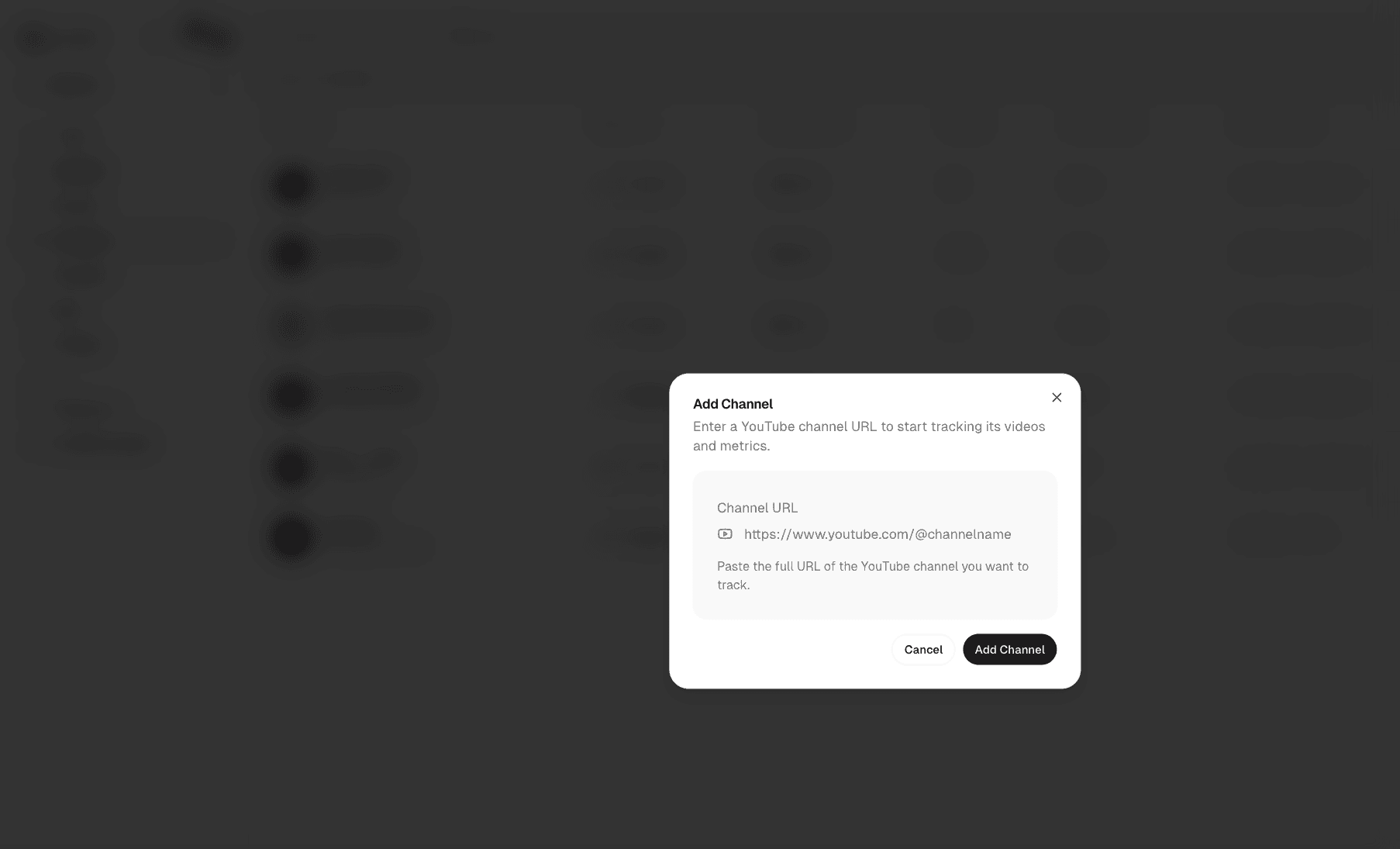
Enter the full YouTube channel URL in one of these formats:
https://www.youtube.com/@channelnamehttps://www.youtube.com/channel/CHANNEL_IDhttps://www.youtube.com/c/channelname
Click "Add Channel" to start tracking. GetFeed will automatically fetch the channel's data and populate it in your list.
View Your Tracked Channels
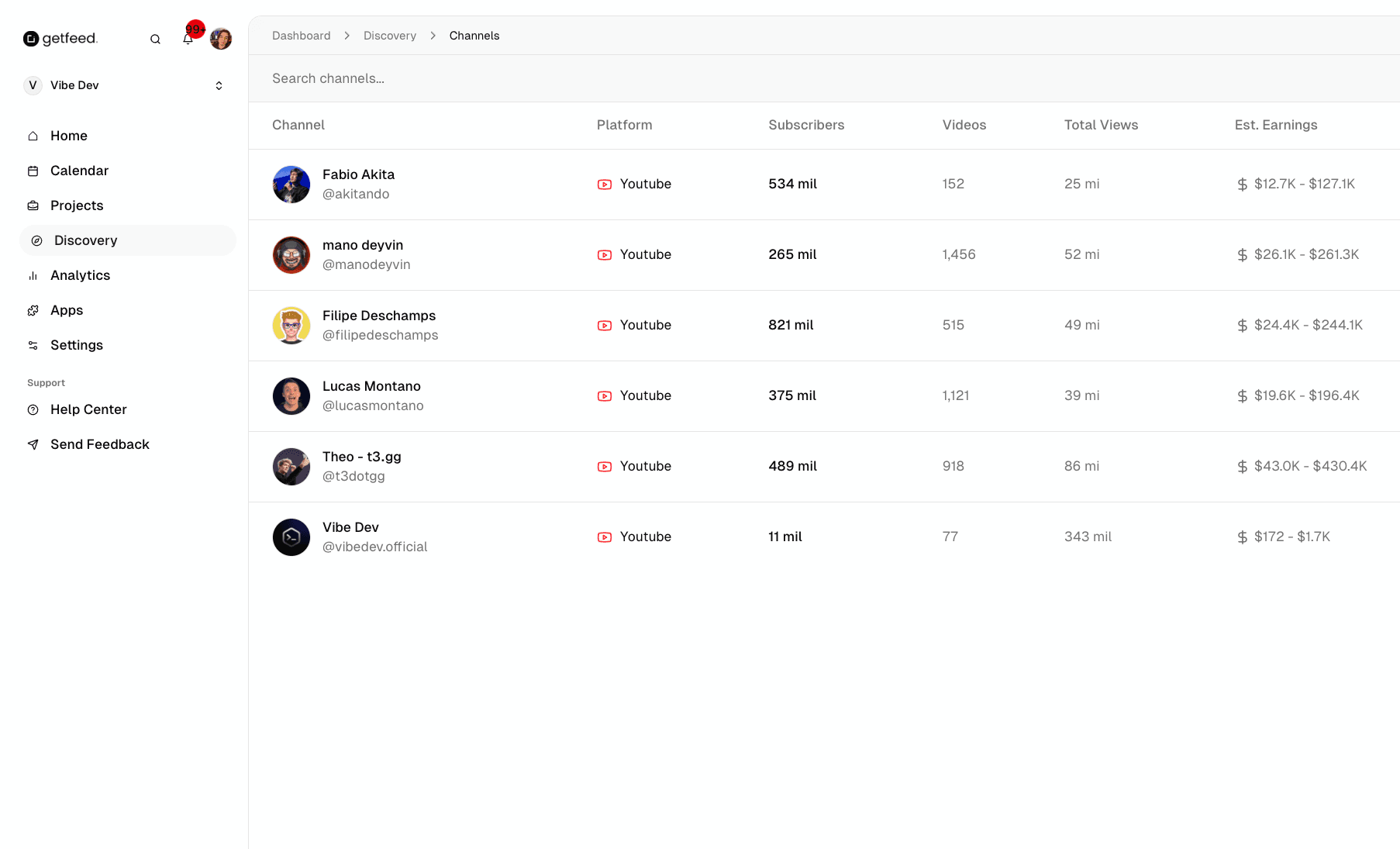
Once added, your tracked channels appear in a table showing key metrics at a glance:
| Metric | Description |
|---|---|
| Channel | Channel name and handle |
| Platform | The platform (currently YouTube) |
| Subscribers | Total subscriber count |
| Videos | Number of published videos |
| Total Views | Cumulative views across all videos |
| Est. Earnings | Estimated revenue range based on views |
| Last Post | When the channel last published |
Pro-Tip
Understanding the Channel Dashboard
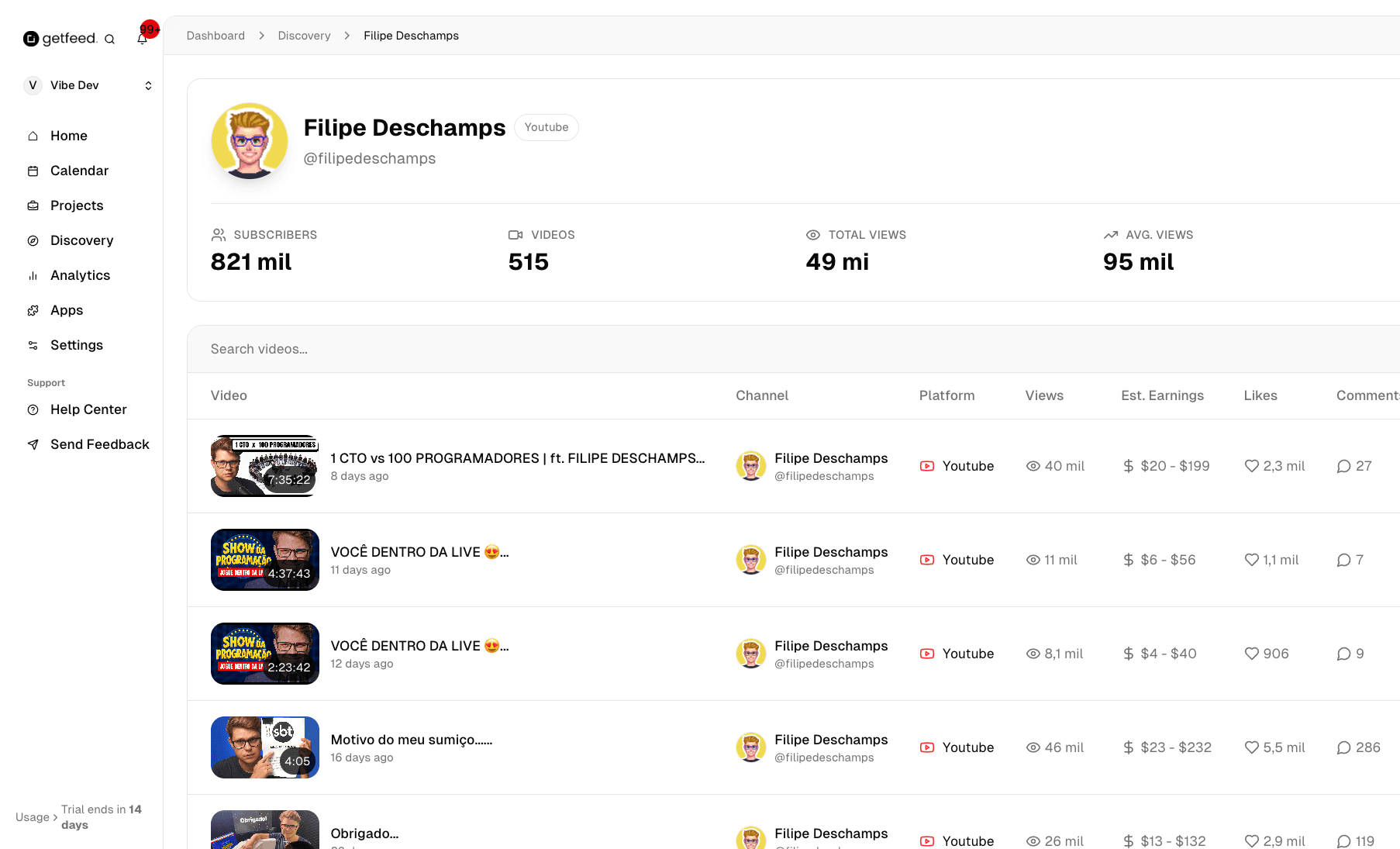
Click on any channel row to access the detailed Channel Dashboard. This is where you get deep insights into a channel's performance and content.
Channel Overview Metrics
At the top of the dashboard, you'll see comprehensive channel statistics:
- Subscribers: Total number of channel subscribers
- Videos: Total published videos on the channel
- Total Views: Cumulative views across all videos
- Avg. Views: Average views per video (helps identify consistent performers)
- Est. Earnings: Estimated revenue range based on CPM calculations
Video Performance Table
Below the overview, you'll find a detailed table of all the channel's videos with performance data:
| Column | What It Shows |
|---|---|
| Video | Thumbnail, title, and publication date |
| Channel | Creator info (useful when viewing aggregated data) |
| Platform | Video source platform |
| Views | Total view count |
| Est. Earnings | Estimated revenue for that specific video |
| Likes | Number of likes received |
| Comments | Total comment count |
| Engagement | Engagement rate percentage (likes + comments / views) |
Engagement Insights
From Discovery to Creation: Using "Get Clips"
The real power of Discovery is the seamless integration with GetFeed's clipping workflow. When you find a video worth studying or repurposing (for fair use/commentary purposes), you can import it directly.
Find a High-Performing Video
Browse the video table in the Channel Dashboard. Look for videos with:
- High view counts relative to the channel average
- Strong engagement rates (5%+)
- Topics relevant to your content strategy
Click "Get Clips"
Each video row has a "Get Clips" button on the right side. Click it to import that video directly into GetFeed as a new project.
Wait for Processing
GetFeed will:
- Download the video
- Analyze it with AI to identify viral moments
- Generate clip suggestions with virality scores
This typically takes 2-5 minutes depending on video length.
Review and Edit
Once processed, the video appears in your Projects. Review the AI-generated clips, select the best moments, and use the Video Editor to add your own branding, captions, and commentary.
Content Ethics
Use Cases for Discovery
Best Practices
Troubleshooting
Next Steps
Now that you understand Discovery, explore these related features:
- Set up your Posting Schedule: Configure recurring time slots to maintain consistent publishing
- Use the Video Editor: Customize imported clips with captions, branding, and effects
- Connect your social accounts: Link YouTube, TikTok, and Instagram for seamless publishing
Ready to schedule?
Read More